 NotchPrompter
Keep eye contact while you read
NotchPrompter hangs your script right under the camera and follows your voice. In any language, even when you skip ahead, and completely on your Mac.
Free and open source. For macOS 15 Sequoia or later. Works best on a MacBook with a notch, and on any Mac with a camera on top.
See it in action
Read, pause, skip ahead. The prompter keeps up with you.
Everything you need. Nothing in the way.
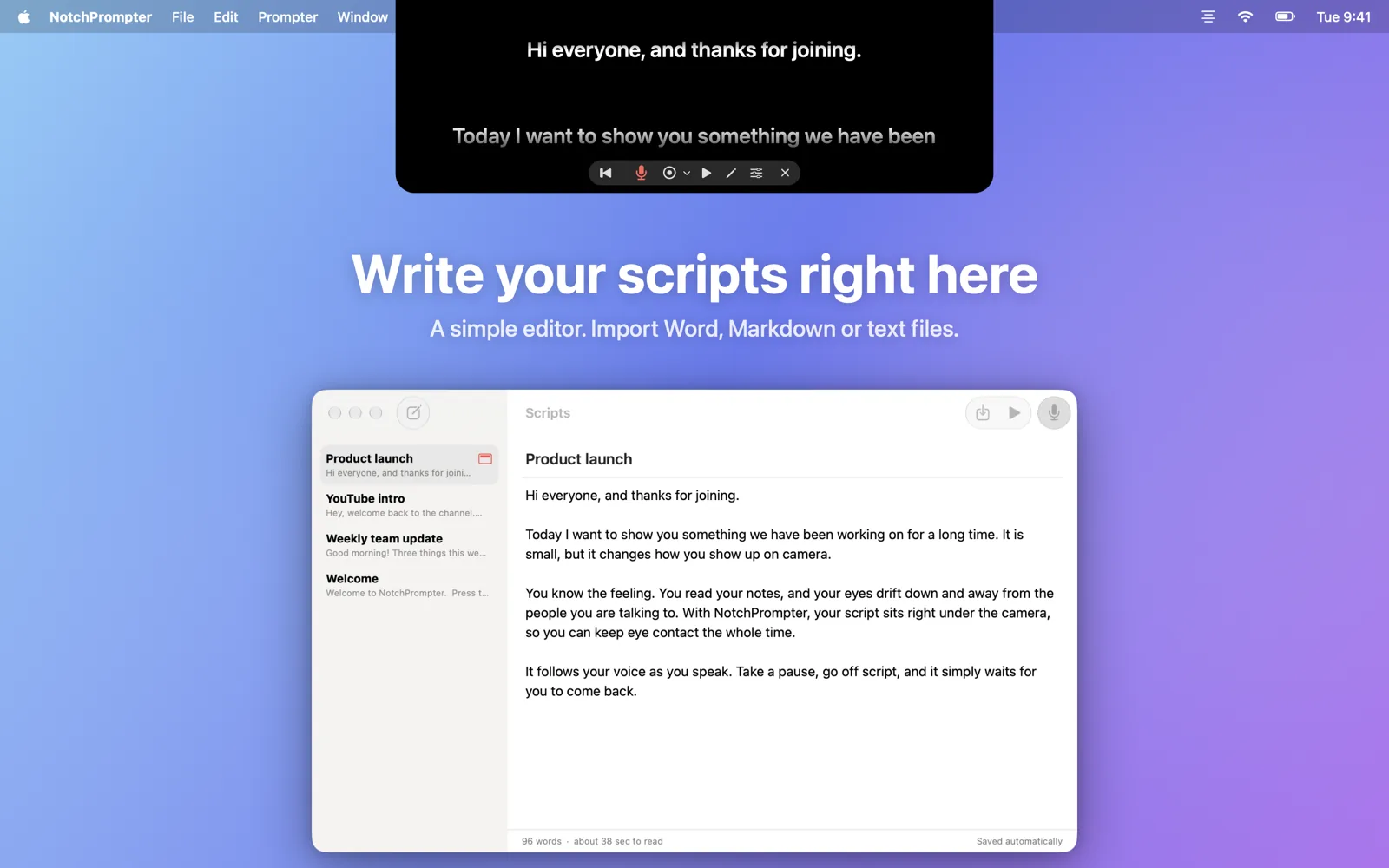
A small black panel under your camera, a few clear buttons, a little editor for your scripts, and a record button.
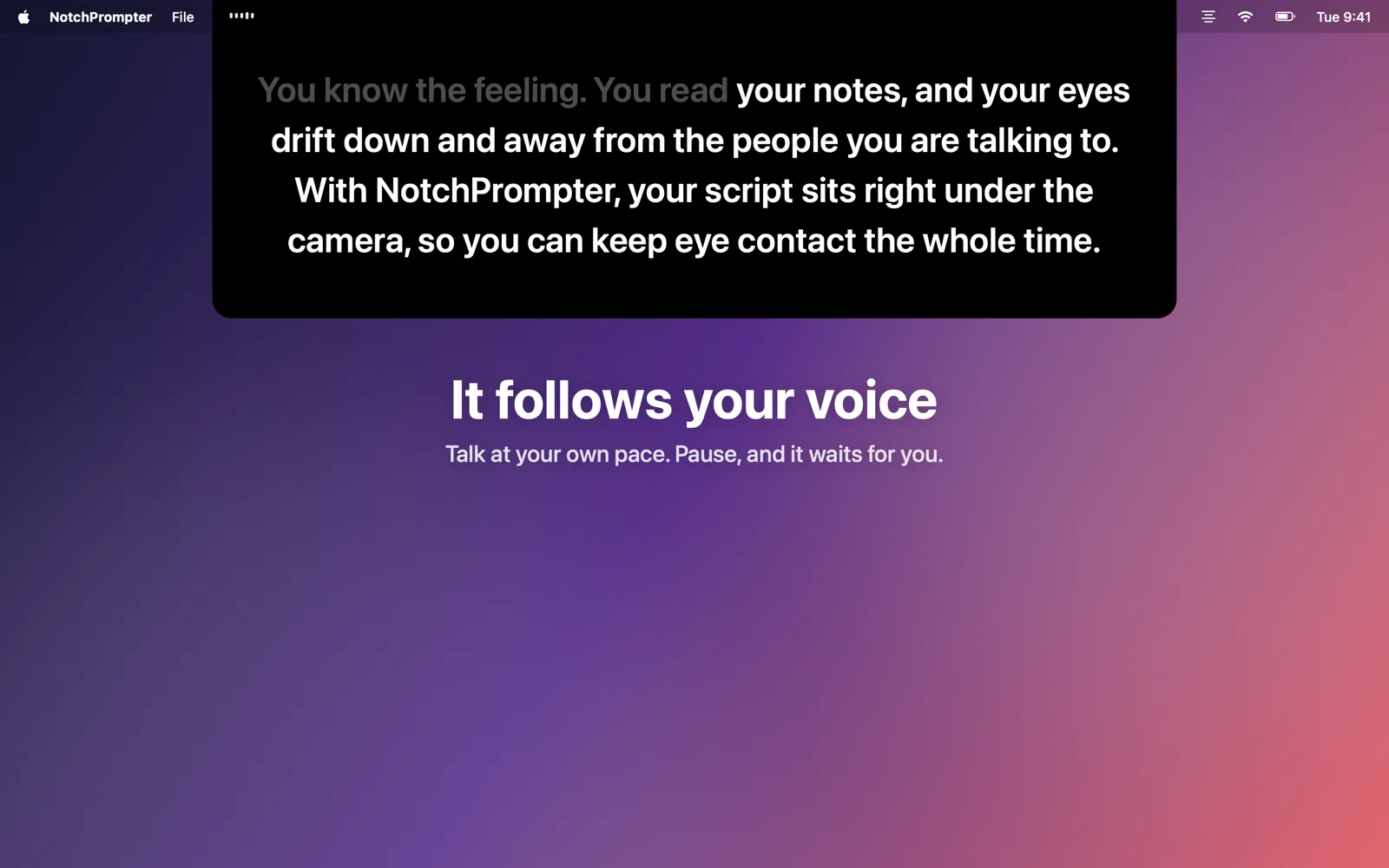
Follows your voice
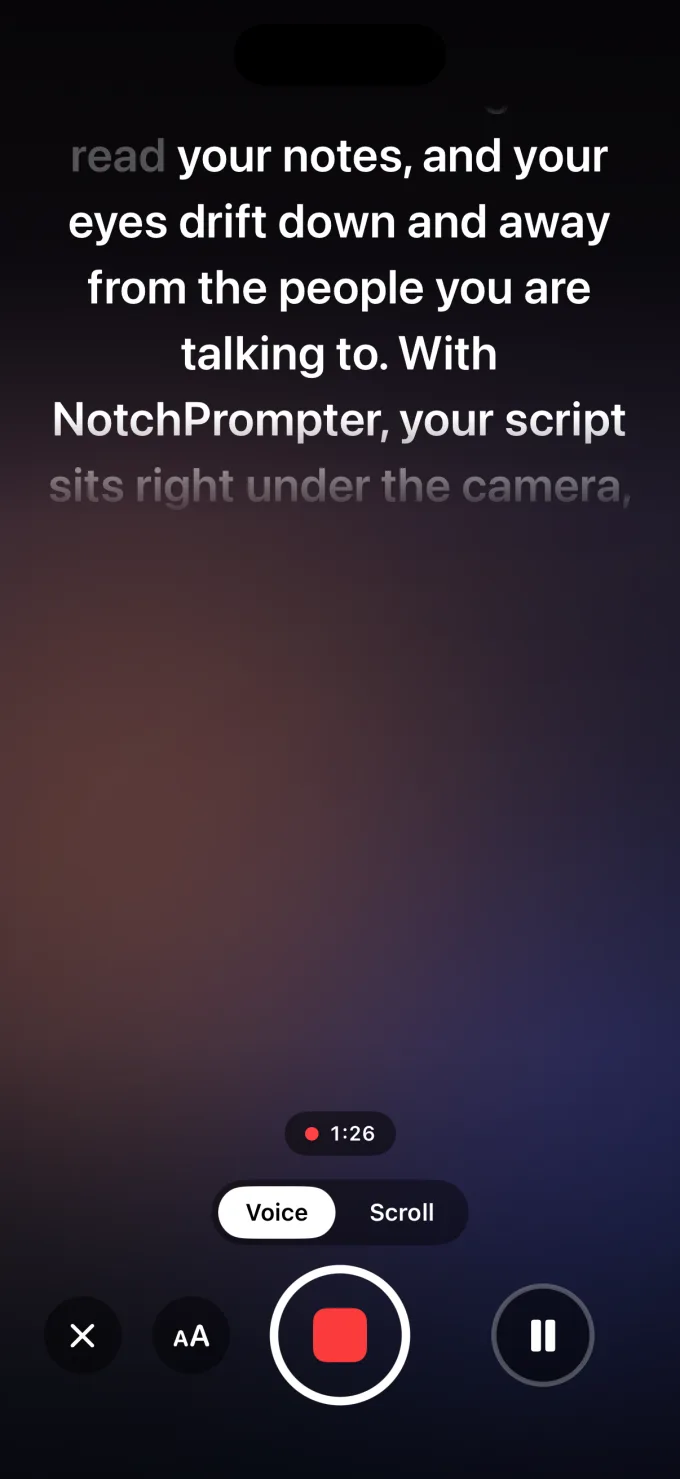
Press the microphone and talk. The next words are always right under the camera. Words you've said fade out.
Any language, automatically
NotchPrompter sees which language your script is in and listens for it. English, Norwegian, German, Spanish, Japanese and dozens more.
Keeps up when you skip
Skip a sentence, change a word, say "uh". It finds where you are and jumps ahead with you. Pause, and it waits.
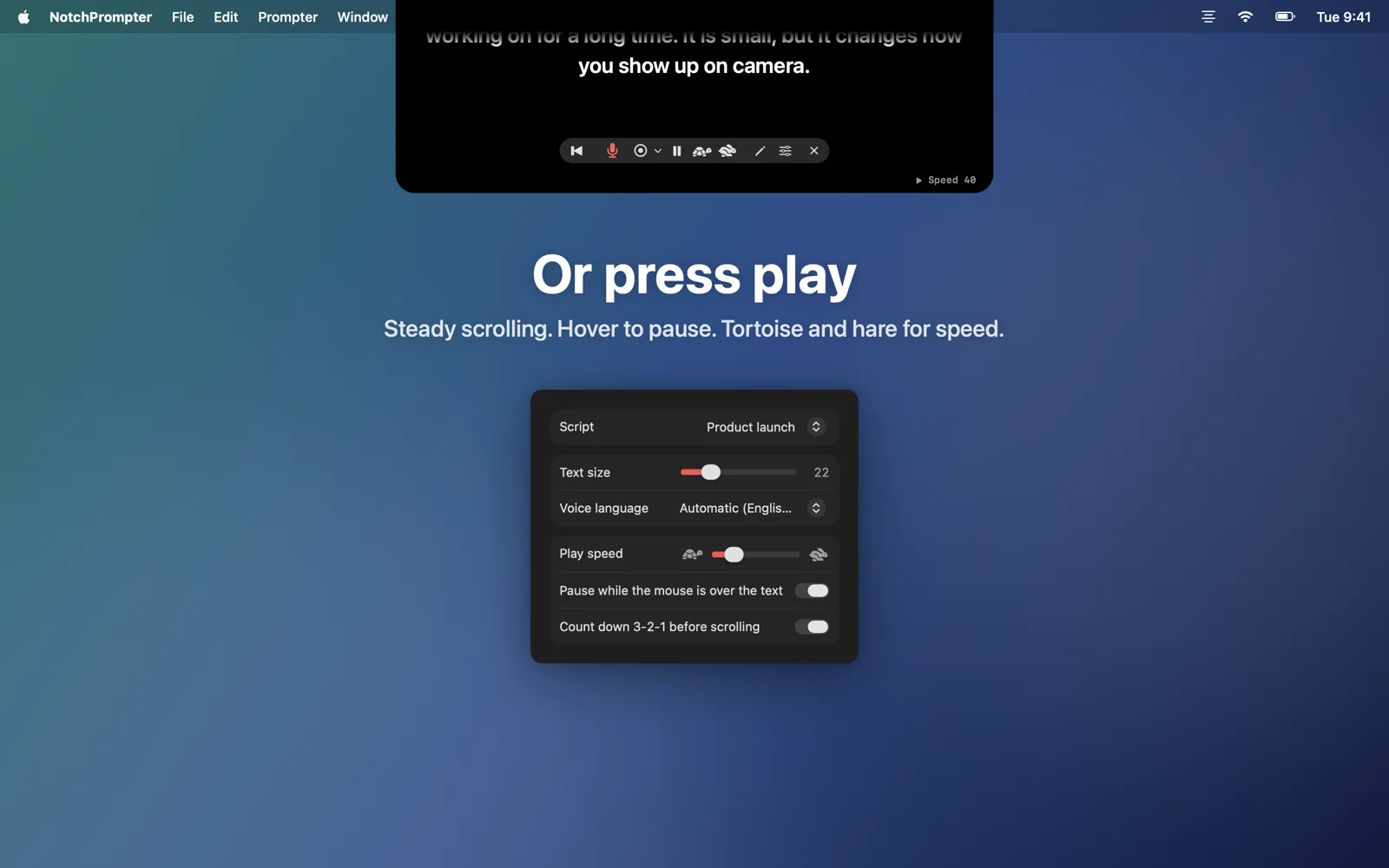
Or press play
Smooth scrolling with a 3-2-1 countdown. Hover to pause, and use the tortoise and the hare to set the speed.
Built-in editor
Keep all your scripts in one place, or as Markdown files in a folder that any editor or AI assistant can use. Import Word, RTF or text files.
Record yourself
Film your camera, your screen or both while you read. Each take is saved in your Movies folder, with subtitles made on your Mac.
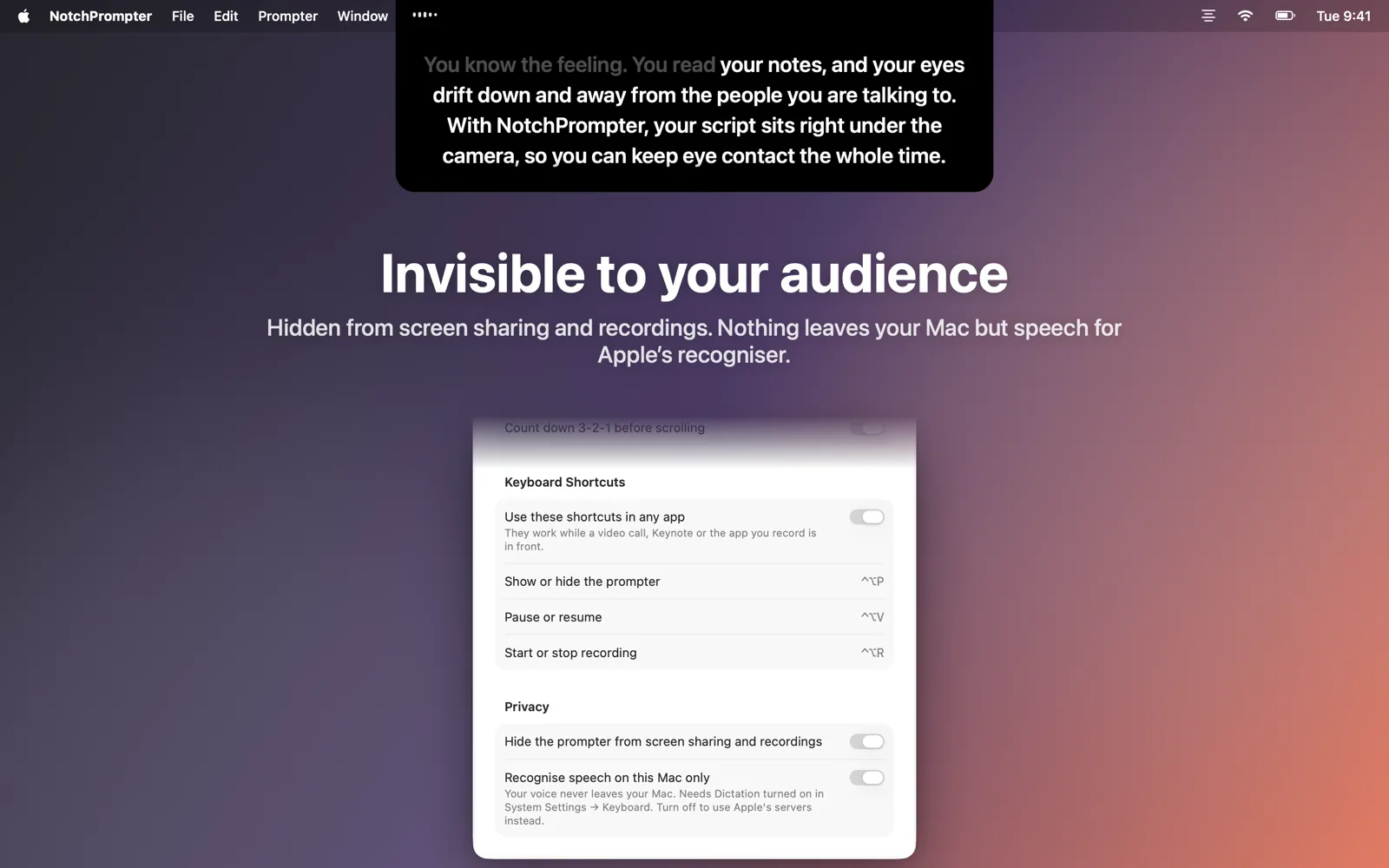
Invisible to your audience
Hidden from screen sharing, screenshots and recordings. Only you can see it.
Runs completely on your Mac
Speech is recognised on your Mac, not in the cloud. No account, no tracking. Your recordings stay on your Mac, and your scripts only sync through your own iCloud.
Your scripts, one click away
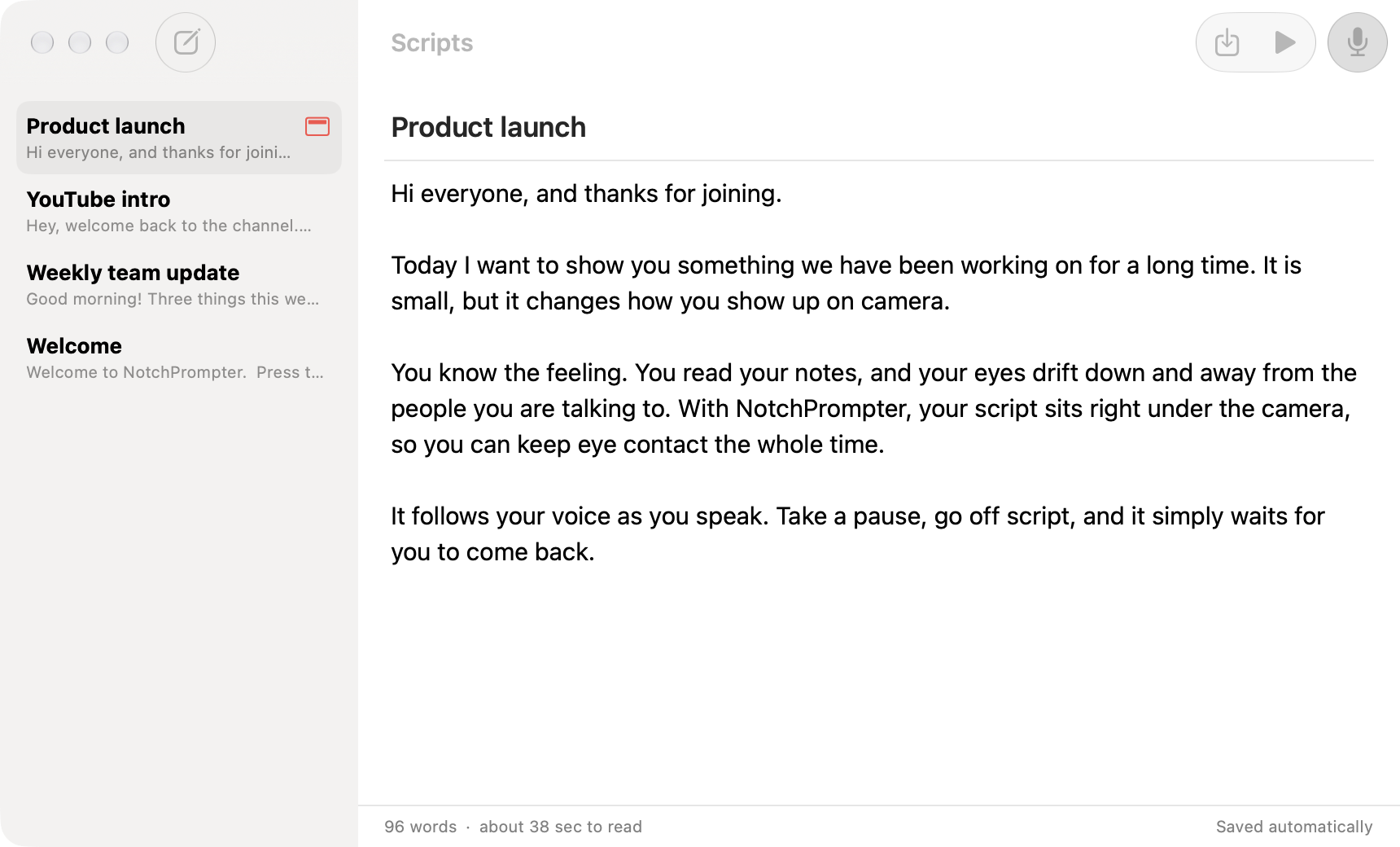
Click the pencil in the prompter to open the editor. Pick a script, press the microphone, and start talking.
- Write or paste your script, or import a file.
- Press Read with Voice.
- Look at the camera and talk.
Made for the camera
Video calls, YouTube, courses, webinars and pitches.
Also on iPhone
NotchPrompter for iPhone puts your script right under the front camera, follows your voice and films you. Trim your takes, add captions and save them to Photos.
It is free, with no watermark and no limit on takes. The prompter, voice-follow, recording, trimming and captions cost nothing. If you want to support the work, you can get Pro. It adds 1080p and 4K, music, voiceover and more editing tools, by the month, by the year or with one payment.
The iPhone app is not open source. It uses the same open-source voice engine as the Mac app, and Pro helps keep the Mac app free. Coming soon to the App Store, for iOS 18 or later.
Questions
Is it really free?
Yes. NotchPrompter for Mac is free and open source under the MIT license. No ads, no subscription, no account. The source code is on GitHub, where you can report bugs, suggest features or help build it.
NotchPrompter for iPhone is free too, with no watermark. If you want to support the project, you can get Pro, which adds more video and editing tools. Read more.
Does it work without a notch?
Yes. On a Mac without a notch the prompter hangs from the top of the screen, under the menu bar, which is still close to the camera.
Which languages does voice-follow support?
Dozens, including English, Norwegian, German, French, Spanish, Chinese and Japanese. NotchPrompter sees which language your script is in and listens for that language, so you don't have to set anything. You can pick another language in Settings.
Will people see the prompter when I share my screen?
No. By default it is hidden from screen sharing, screenshots and recordings. You can turn this off in Settings if you want to show it.
Does anything go to the cloud?
No. Speech is recognised on your Mac (with Dictation turned on in System Settings), and NotchPrompter has no servers. Voice-follow never saves audio. Takes are saved only in your own Movies folder. If you use iCloud, your scripts sync through your own iCloud account. Read the privacy policy.
What are the keyboard shortcuts?
Click the prompter, then: Space play/pause, V voice, C record, R back to top, ↑ ↓ speed, + − text size, E editor, Esc stop.
In any app: ⌃⌥P show or hide the prompter, ⌃⌥V pause or go on, ⌃⌥R record.